

The Renderer visualizes all objects of the drawing that are also listed in the Scene Tree and have a geometry. Which objects are visible and which are not visible is controlled in the layers and classes in the Navigation. The Renderer also lets you activate objects and edit them directly with the commands from the tool bar.
The Renderer’s display can be changed between 2D and 3D. To do this, click on the small gray triangle in the upper right corner of the Renderer, which displays the current view.
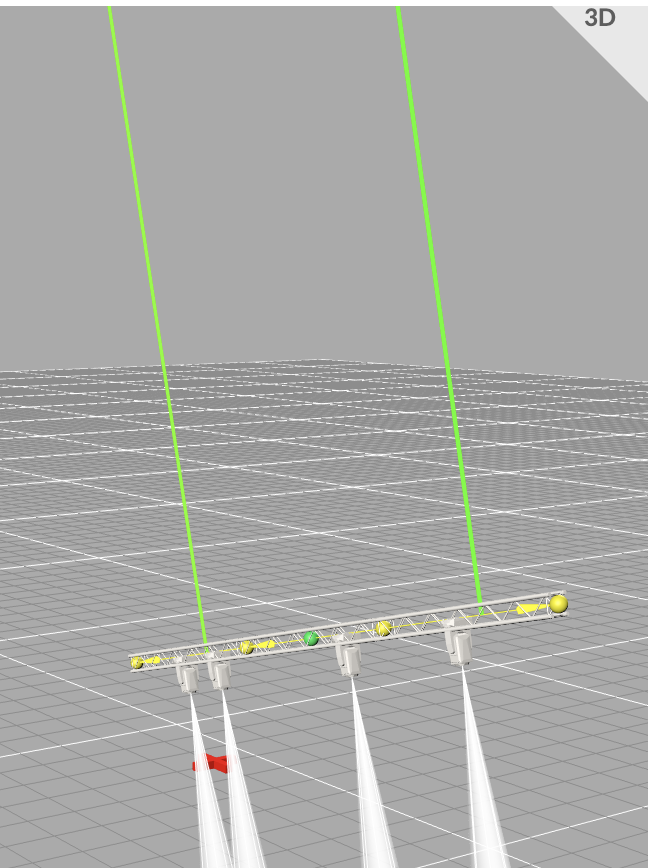
Additionally, you can switch between the isometric and orthographic view by either using the appropriate menu item View -> Isometric or Ortho View or by clicking c on your keyboard. For more information on shortcuts, see the shortcuts page
You can easily move around the Renderer with your mouse. By scrolling the mouse wheel, you can zoom in on objects and zoom away from them. If you hold down the mouse wheel, you can rotate the view around the center of the drawing. By swiping along the trackpad with two fingers or using the Orbit tool from the tool bar, you can move around within the drawing.
Zooming and rotating always happens around the red cross visible in the middle. To change the center for rotations, hold down the Alt key on Windows/Linux or the Option key on Mac OS and left-click on the new position.
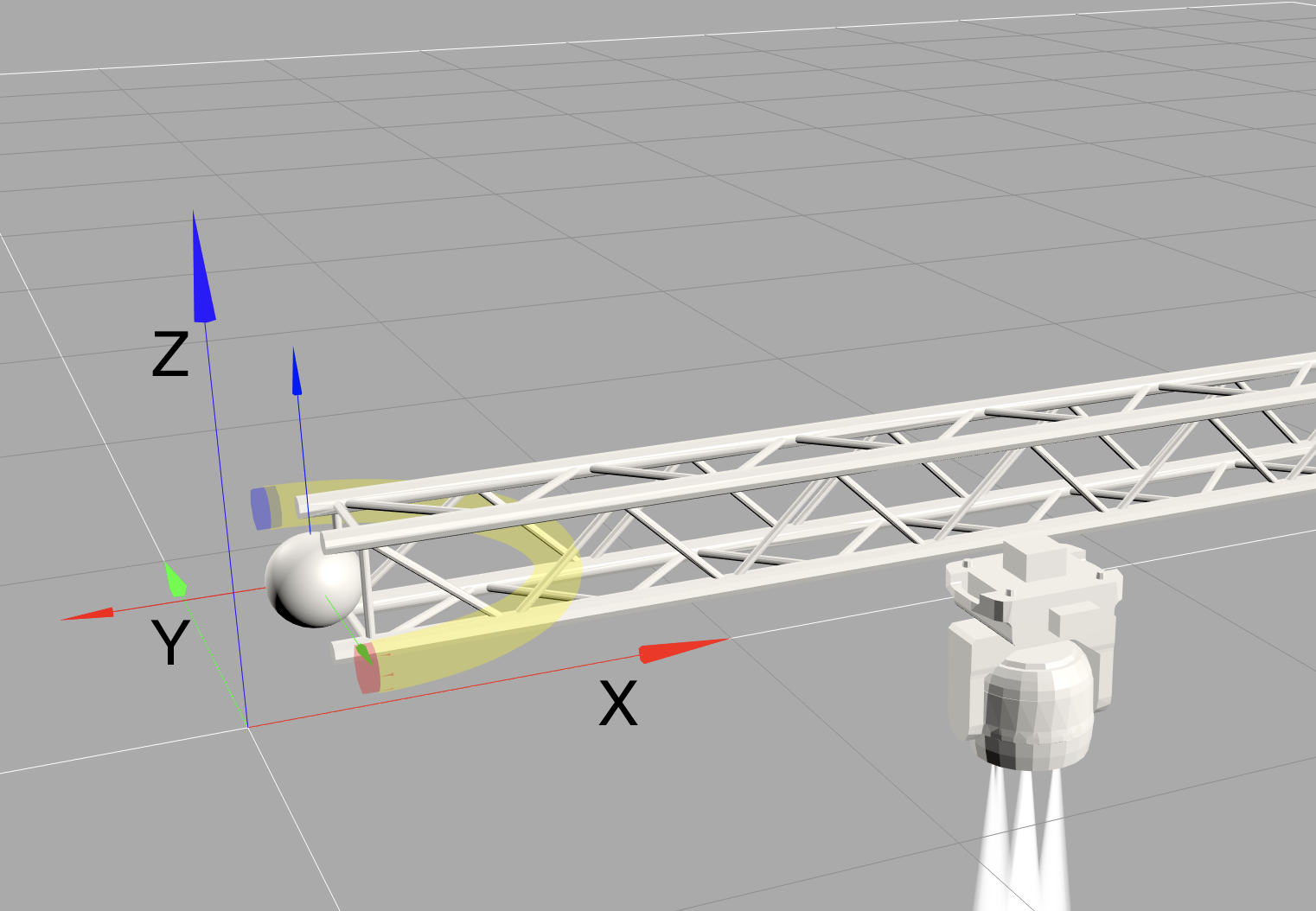
Production Assist uses a right-handed Cartesian coordinate system X,Y,Z: X - from left (-X) to right (+X), Y - from top (+Y) to bottom (-Y), and in 3D mode the Z axis starts at the floor level and signifies depth (-Z) and height (+Z).
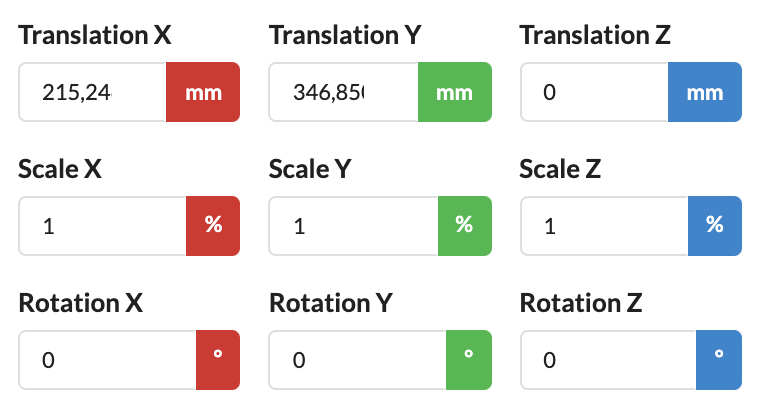
The axes are color-coded:
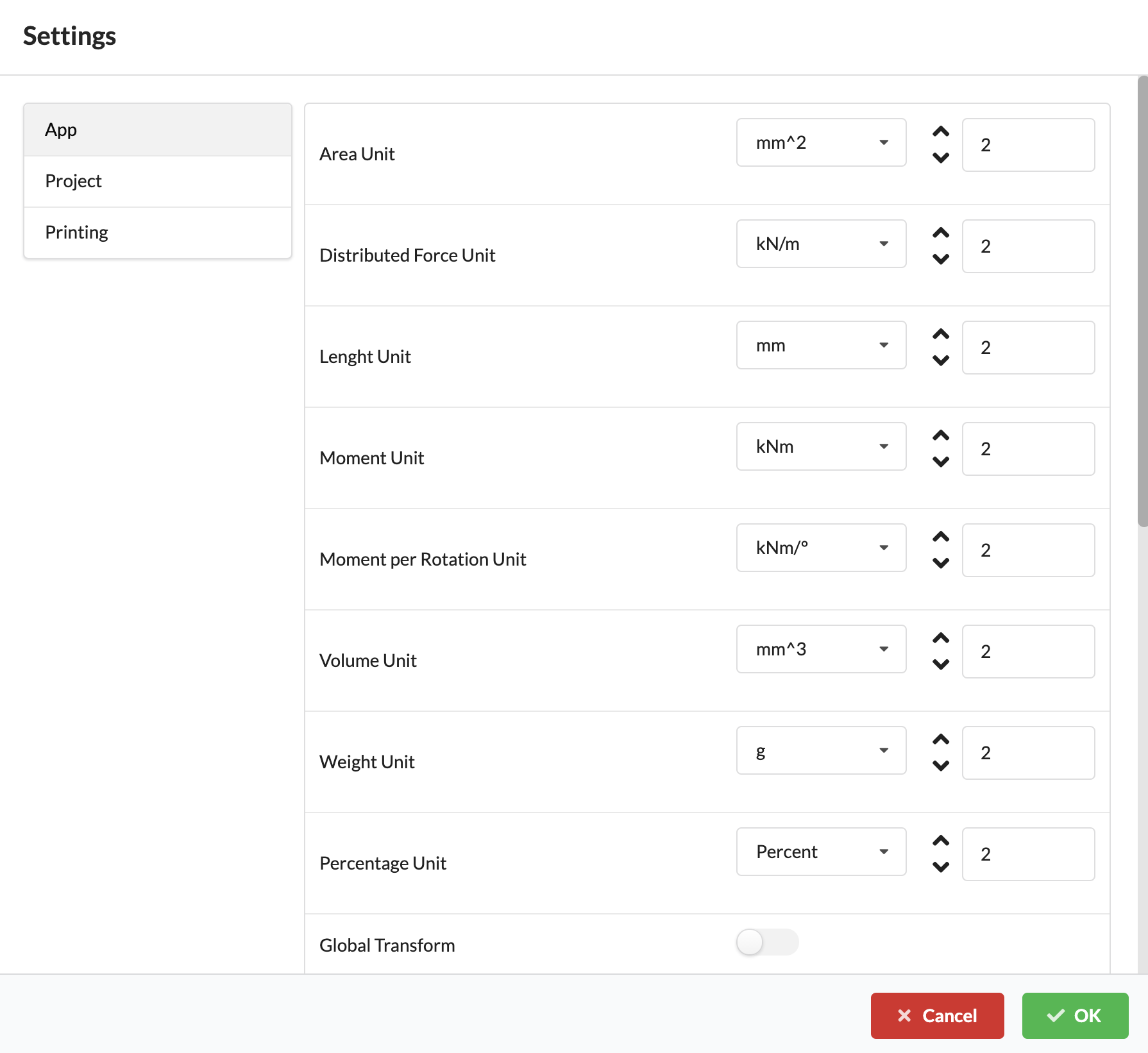
You can access the Settings of the Renderer via the menu item File, which is located in the menu bar.
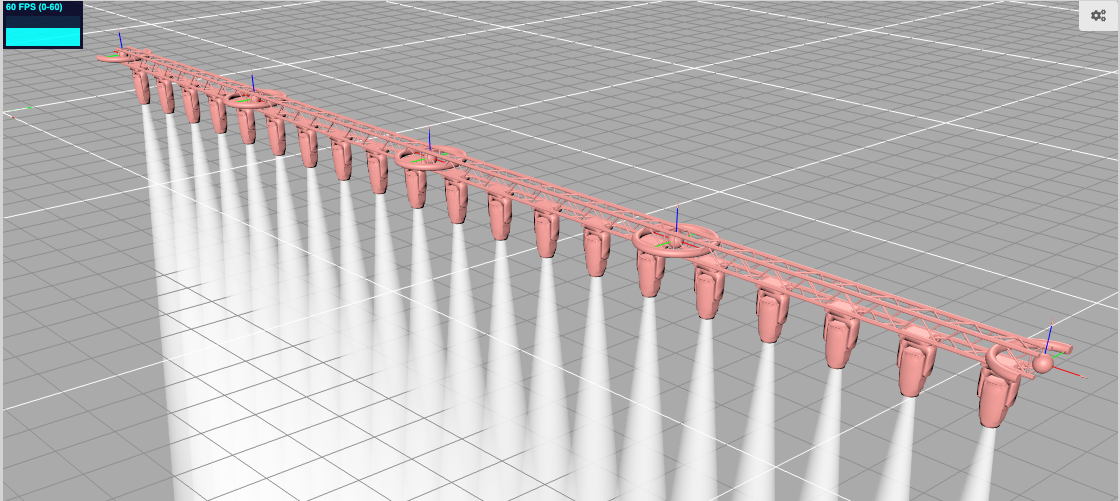
There are two ways of adjusting the view of the light output of imported GDTFs in the 3D Renderer.
| Name | Description |
|---|---|
| Show Beam in 3D View | Draws a rendered beam in 3D. |
| Show light helper in 3D view | Displays the schematic view of a beam. |
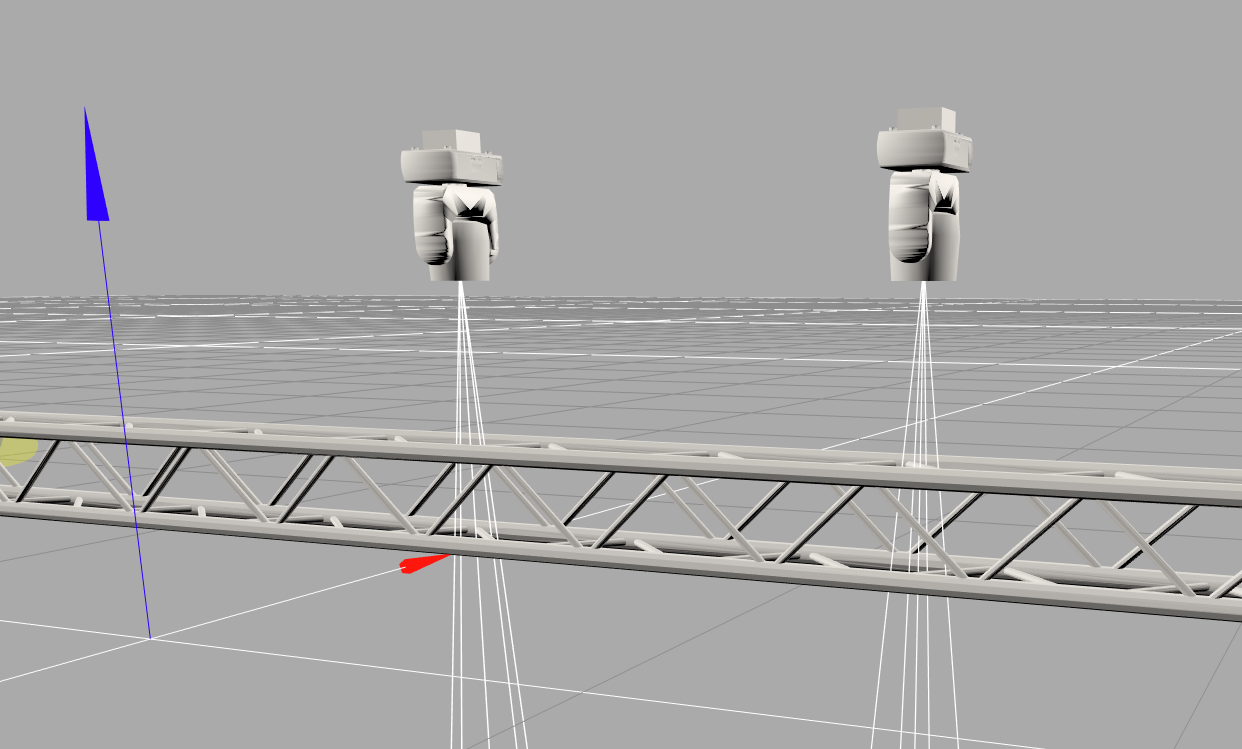
| Name | Description |
|---|---|
| Color Truss Structures | Colors contiguous truss systems. |
| Show Magnets | Makes the magnets visible/invisible for easy joining together of, for example, trusses. |
| Name | Description |
|---|---|
| Render every frame | As many frames as possible are rendered. This should only be enabled if animations are to be played in Timelines. |
| Solid Floor | The zero plane on the z-axis - the "floor", so to speak - can be represented as a solid surface or as a transparent plane. |